
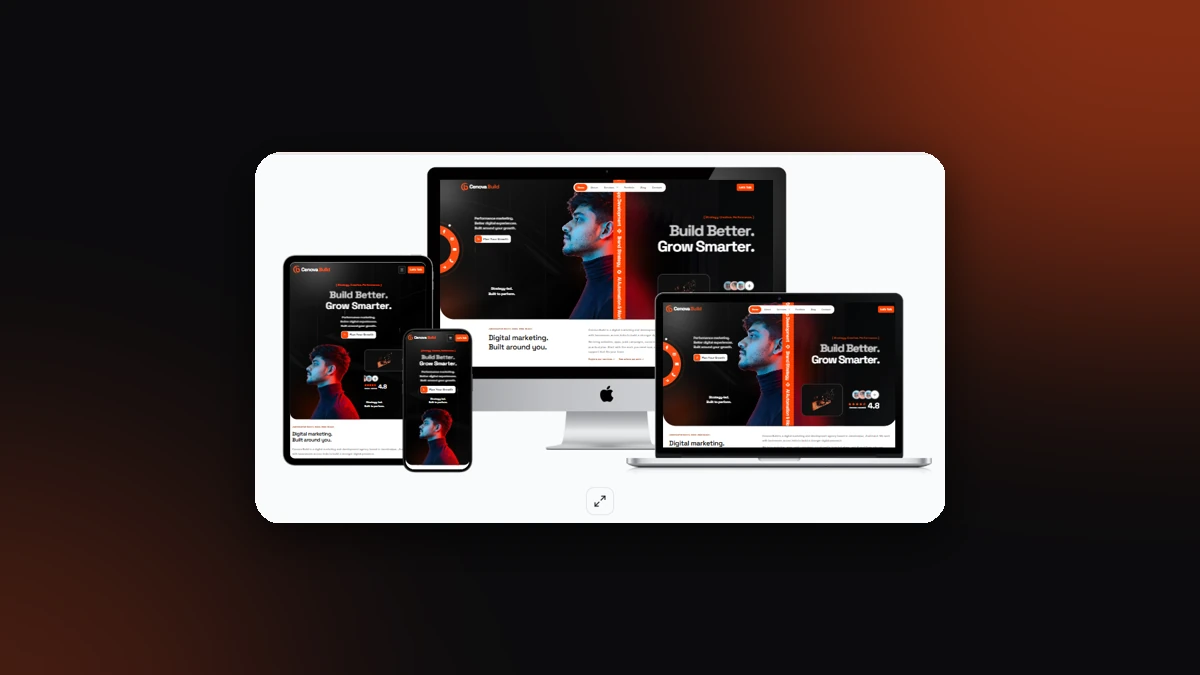
Showing a client how their website looks on a phone, comparing a redesign with the old site or checking why a page feels slow normally means juggling screenshots, browser tools and separate speed tests. WebMockup, a free tool from Cenova Build, brings those jobs into one place. This article explains what it does, how it compares with other approaches and when each option makes sense.
What WebMockup is
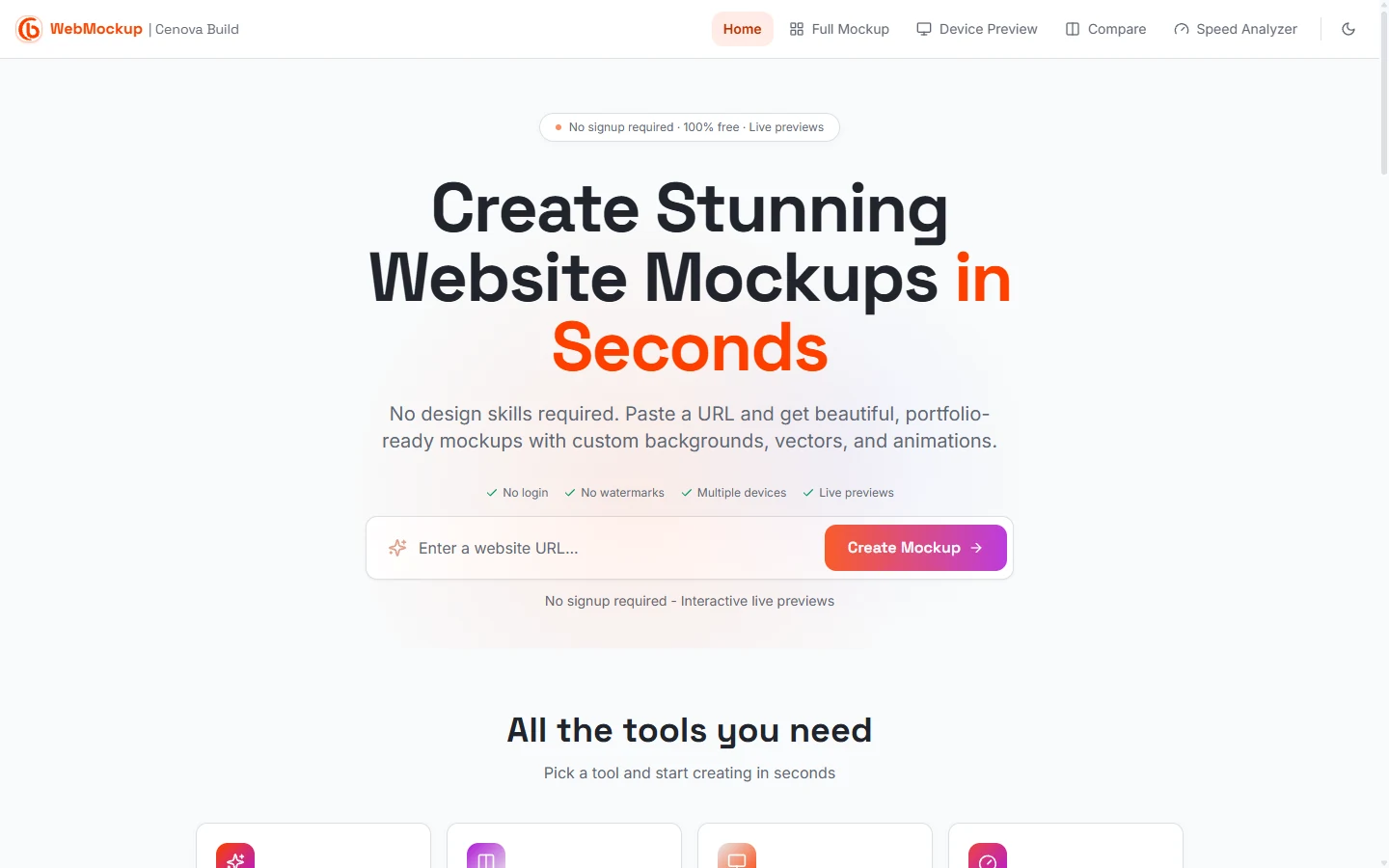
WebMockup is a free website mockup and responsive preview tool. You enter a web address and see the live site inside device frames for mobile, tablet, laptop and desktop. There is no signup, and it is built for designers, developers, agencies and business owners who need to present or check a website quickly.
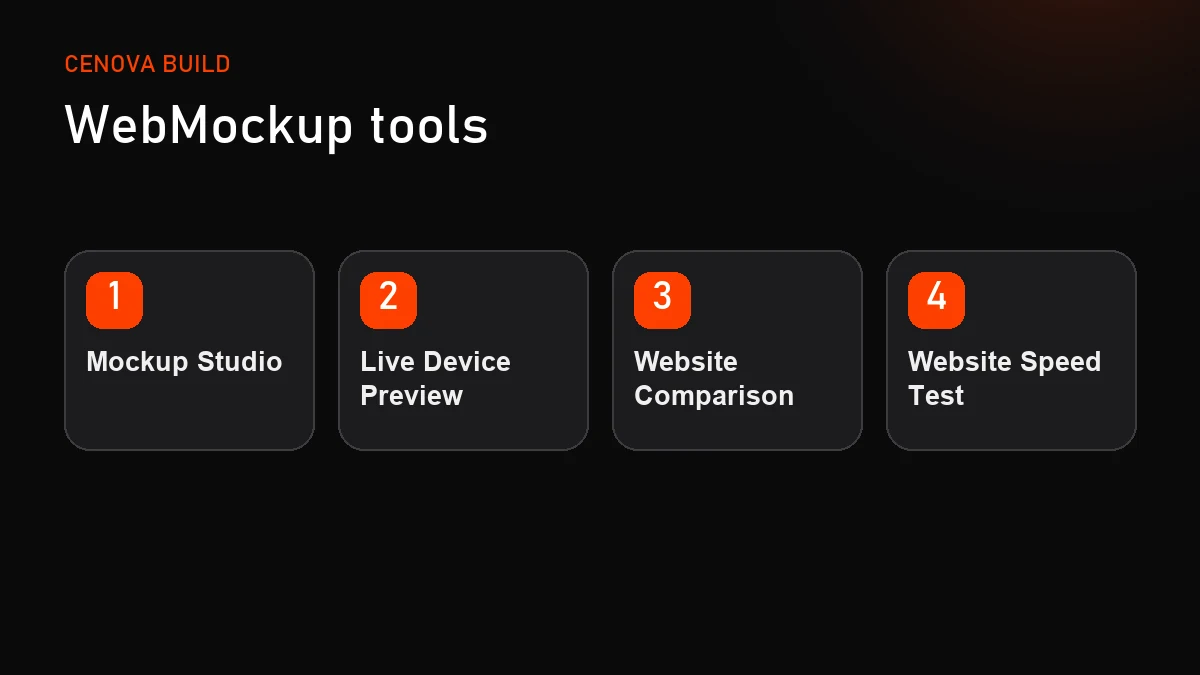
It is organised into four tools: Website Mockup Studio, Live Device Preview, Website Comparison and Website Speed Test. Each one solves a specific job, and you can move between them without starting over.
Live Device Preview
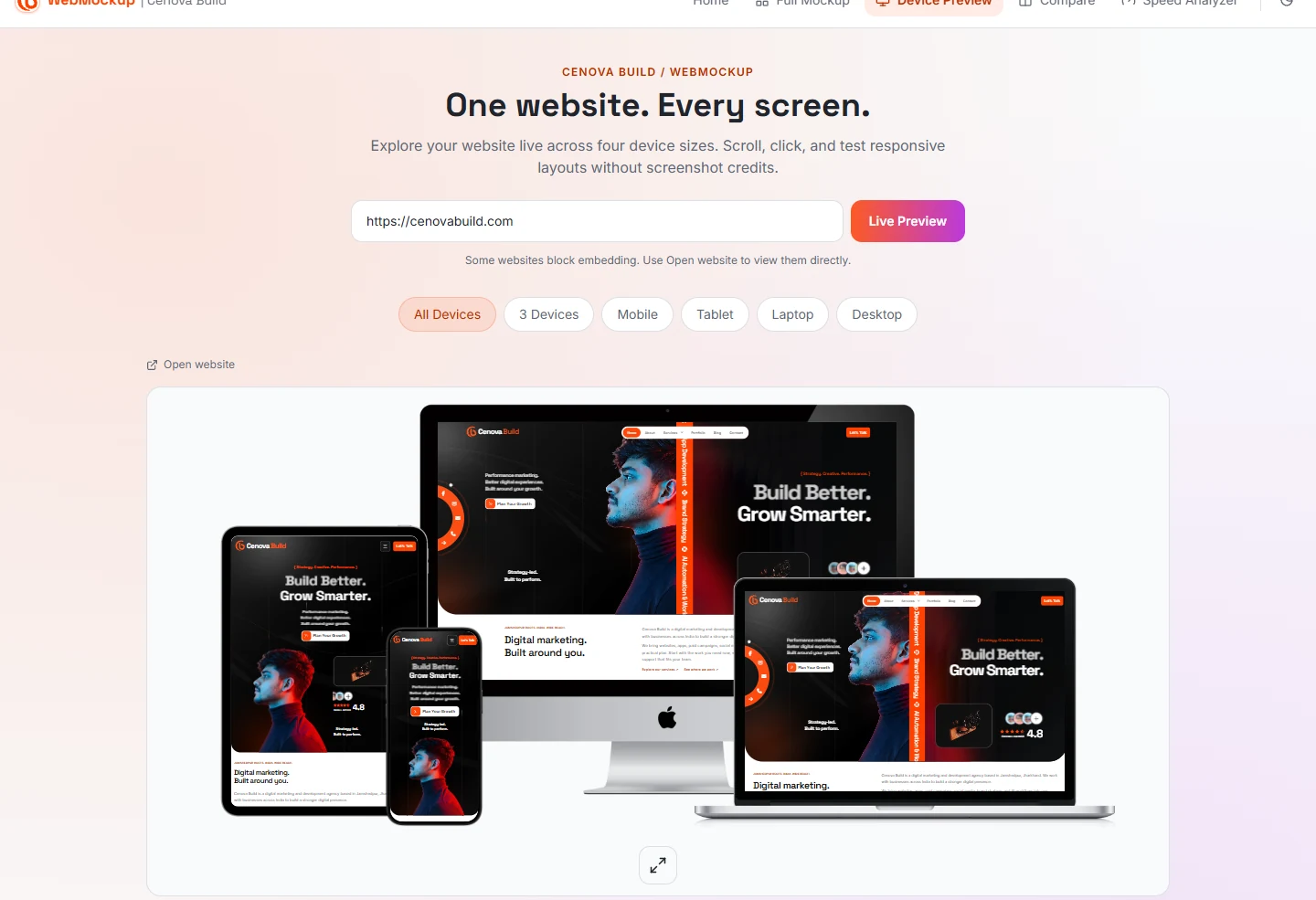
Live Device Preview shows a real, working website inside mobile, tablet, laptop and desktop screens. Because the preview is live rather than a static screenshot, you can scroll and interact with the pages, open menus and check how the layout responds.
It also avoids the credits that screenshot services usually charge for, so you can look at as many pages as you like. This is useful for quick design reviews, client calls and checking a page before launch.
Website Mockup Studio
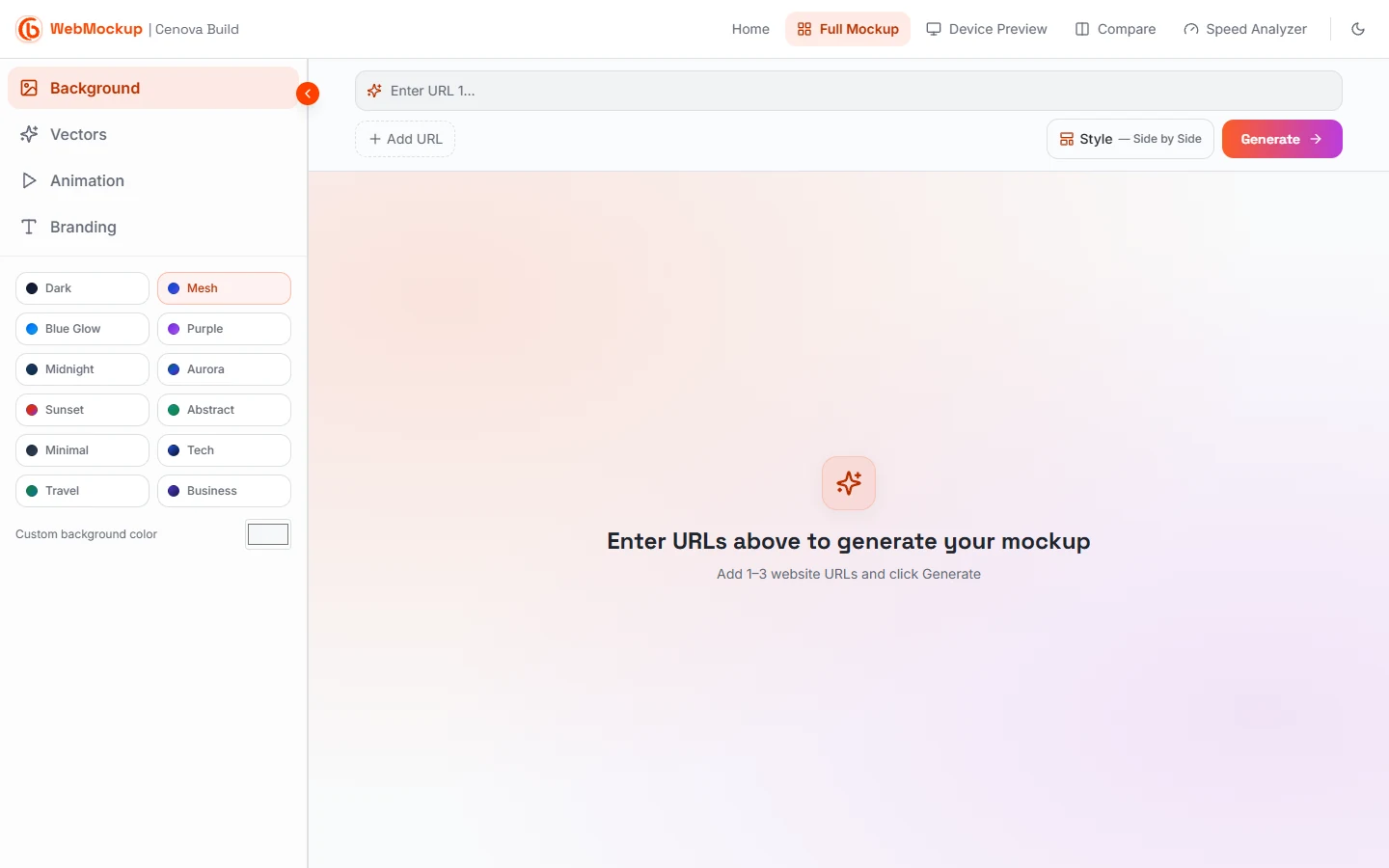
The Studio is for presentation. You can compose live website previews with custom backgrounds, decorative vectors and layouts, and arrange them on a stable responsive board.
That makes it practical for portfolio pieces, proposals and social posts where you want a website to look polished rather than simply pasted into a browser window.
Side-by-side Website Comparison
The Comparison tool places two websites next to each other across desktop, tablet and mobile views at the same time. It is designed for A/B testing ideas, showing a redesign beside the original and reviewing a competitor’s layout.
- Show before and after versions of a redesign to a client
- Compare two design directions on the same screen sizes
- Review how a competitor’s site is structured on mobile
- Check that a staging site matches the live one
Website Speed Test
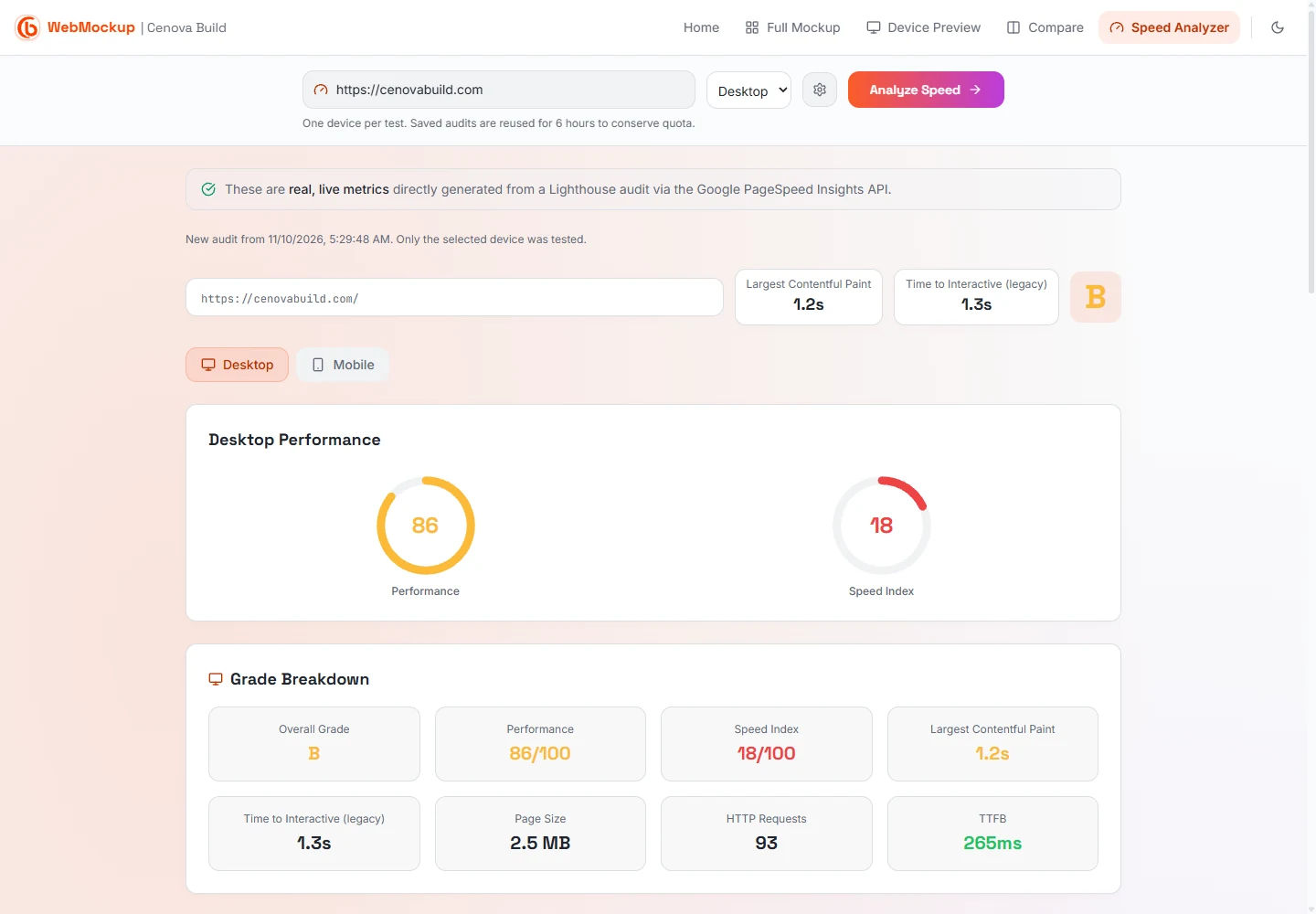
The Speed Test uses Google PageSpeed Insights to test desktop and mobile performance. You can review Lighthouse lab scores, loading metrics, network requests and optimisation tips.
Lab scores are a useful guide, not a verdict. They show how a page behaves under test conditions, so treat them as a starting point for improvements and re-test after each change.
How WebMockup compares with other options
Browser developer tools can emulate device sizes, and they remain the best choice for detailed debugging. They are less convenient for presenting to a client, and they show one site at a time.
Screenshot-based mockup generators produce attractive images, but a screenshot is static and often depends on credits or accounts. Design tools let you build custom frames, though they require you to supply screenshots. PageSpeed Insights gives detailed performance reports on its own, while WebMockup places the test next to the preview and comparison tools so you can move between them.
Limits to be aware of
Any tool that shows a site live inside a frame depends on that site allowing it. Some websites block embedding for security reasons, and those may not display in a preview. Speed scores also vary between runs, so test more than once before drawing conclusions.
For private or password-protected staging sites, check access first, and never share a preview of a client’s work without their permission.
When to use it
Use WebMockup when you need a fast visual check, a client-ready presentation or a quick comparison, and use developer tools when you need to debug a specific problem. Many teams use both at different stages of a project.
If you would like a website that looks right on every screen from the start, that is the kind of detail we plan into our own projects.
You can try it or read more at WebMockup.
Want a site that holds up on every screen? Our website design and development team builds responsive, fast websites and can review your current one.
Frequently asked questions
What is WebMockup?
WebMockup is a free tool from Cenova Build for previewing websites live on mobile, tablet, laptop and desktop, comparing two sites side by side and running a Google PageSpeed test.
Is WebMockup really free, and do I need an account?
It is free and requires no signup. You enter a website address and use the tools directly.
How is a live preview different from a screenshot?
A live preview shows the working website, so you can scroll, open menus and see responsive behaviour. A screenshot is a fixed image of one moment.
Why does a website sometimes not load in the preview?
Some sites block being shown inside a frame for security reasons. In that case, use the site’s own address in a browser or your developer tools.
What does the speed test measure?
It uses Google PageSpeed Insights to report desktop and mobile Lighthouse lab scores, loading metrics, network requests and optimisation tips.
